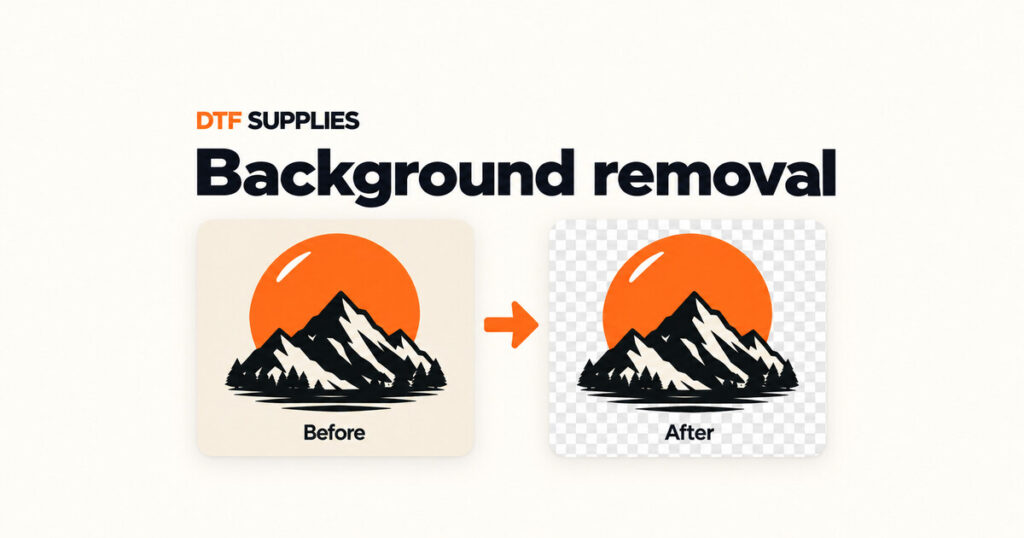
To prepare DTF artwork without a rectangular background, remove the unwanted background from the image and check the remaining edges before ordering. A transparent PNG is a useful starting point, but the file still needs inspection. White artwork, lettering and highlights may be intentional parts of the design.
Our DTF gang sheet builder includes background removal. Use it carefully, then review the result against your original artwork. The steps below focus on cleaning one design before you repeat it across a sheet.
Decide what should remain in the design
Start with the original, highest-quality file you have. Keep an unchanged copy so you can compare the result or try again without losing detail.
Look at the design as a whole. Does it need an outline, a white slogan or white areas inside the logo? Would removing the surrounding colour also remove something you want printed? Background removal needs a visual check whenever the artwork and its background have similar colours.
A JPEG does not support a transparent background. Saving that JPEG as a PNG does not automatically remove its white rectangle. The unwanted pixels must be removed, and the replacement file must preserve transparency.
Remove the background in the builder
- Open the builder. Choose a sheet size on the product page, click Build a Gang Sheet and start a new sheet or choose Auto Build.
- Add the original artwork. Use Upload Image(s). In the manual builder, click the uploaded artwork to place it on the sheet, then select it to work on that design.
- Use Remove Background. Open the background-removal option available for the selected image or its Auto Build design card. Review any message before applying the result. If the option is unavailable for your file, prepare a transparent version in your artwork software or ask us for help.
- Inspect the cleaned version. Check the outline, small gaps and any white details against the original. Do this before duplicating the design.
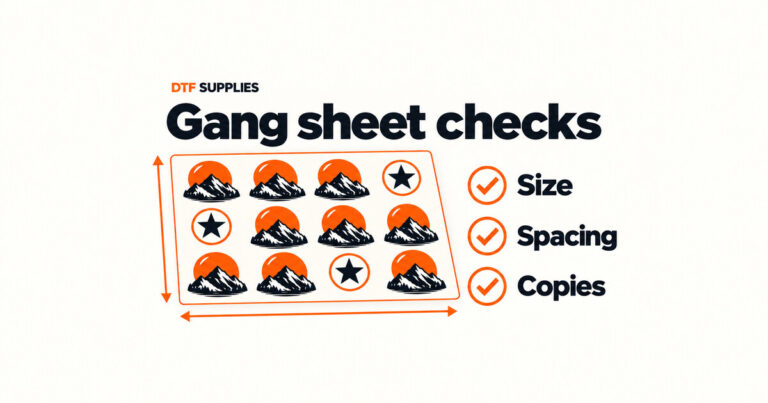
- Confirm the final print dimensions. Recheck width and height after editing, then arrange the design and set the number of copies you need.
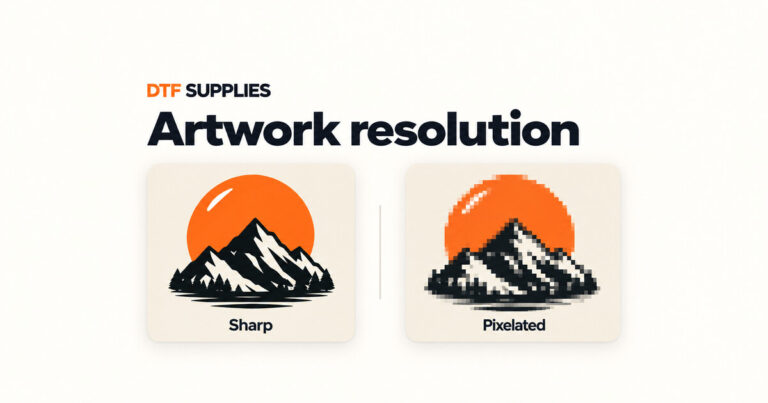
Background removal does not improve a blurry source image. If the original lettering or outline is already soft, use a better original before building the sheet.
Check transparency with Visual Aid
In Settings, use Visual Aid to change the editor backdrop. Inspect the artwork against a dark colour, then a light colour. A dark backdrop makes pale leftovers easier to spot; a light backdrop helps you inspect dark edges.
Visual Aid changes the preview only. Its colour is not added to the print file, and changing it does not erase a background contained in the artwork.
Zoom in around curves, letter openings and small isolated details. A checkerboard can indicate transparent areas, but a checkerboard pattern saved inside the image is still artwork. If those squares stay attached to the design when you change the backdrop, check the original file.
Fix common background problems
A white border remains
Inspect it on a dark backdrop. Decide whether it is an intentional outline or leftover background. If cleanup cannot preserve a clean edge, return to the original artwork rather than accepting the border unnoticed.
Parts of the logo disappear
Compare the result with your original. Restore the original file and try a more controlled edit in your artwork software. Do not approve a version with missing lettering, highlights or internal white shapes.
The image looks clean when small
Review it at a closer zoom as well. A full-sheet view can hide tiny flecks and rough edges. Also confirm its intended physical size; the screen preview alone does not tell you how large the transfer will be.
Frequently asked questions
Should all white areas be removed for DTF printing
No. Keep white elements that belong to the design. Remove only the background or other unwanted areas.
Does the background warning check everything
Treat a warning as a prompt to inspect your file. A warning disappearing is not proof that every edge or small detail is ready to print.
What if I cannot get a clean result
Contact DTF Supplies before ordering. Explain which background should disappear and which details must remain.
For the complete ordering workflow, read how to use our free DTF gang sheet builder. Drip Apps also explains how the Visual Aid preview works.