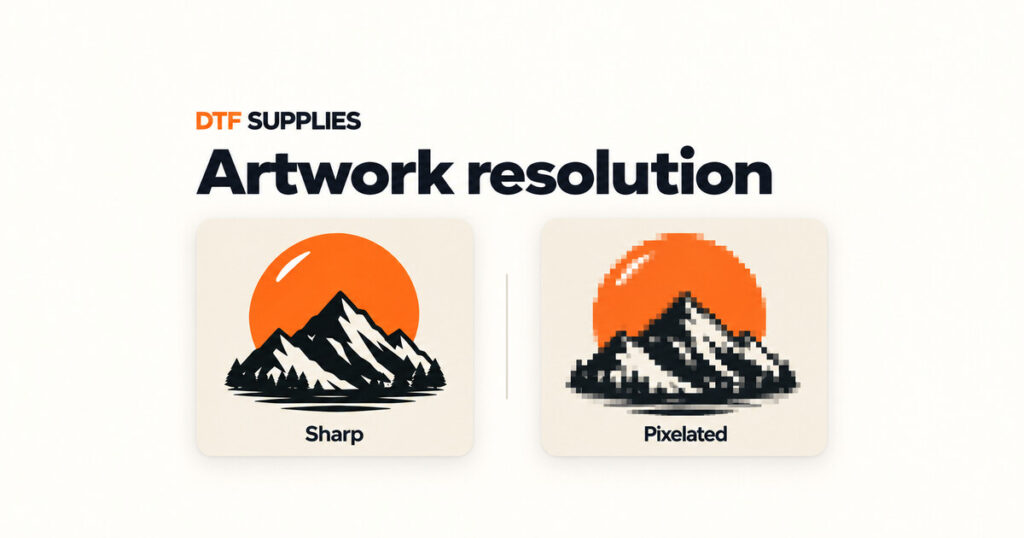
DTF artwork can look blurry because the original file has too little detail for the chosen print size, or because the source already contains soft edges and compression damage. Check the artwork in the gang sheet editor at its final width and height. A small thumbnail and a saved “300 dpi” label are not enough to judge it.
This guide explains what to check before ordering through our DTF gang sheet builder.
Check the original before changing anything
Use the original export from the designer where possible. A screenshot, social-media download or small website logo may have lost detail before it reaches the builder. Enlarging it can make that damage more obvious.
Inspect lettering and curves in the source file. Jagged corners, blocks around letters and fuzzy outlines need attention even when a resolution indicator looks favourable. If a designer supplied the logo, ask for a suitable original export rather than repeatedly saving the same small image.
Understand resolution at the finished size
Raster files, such as PNG and JPEG, contain a fixed number of pixels. Their effective resolution depends on how widely those pixels are spread when printed. The builder displays this as dpi.
For raster artwork, aim for 300 dpi at the intended print dimensions. This is a useful preparation target, rather than a guarantee that every file will look good.
For example, an 1800-pixel-wide image is 300 pixels per inch when printed 6 inches wide, approximately 152 mm. Print the same file 12 inches wide, approximately 305 mm, and it becomes 150 pixels per inch. Doubling the physical width has halved the effective resolution.
Changing the saved resolution label to 300 does not restore missing detail. Check the pixel dimensions and the actual print width and height together. Both directions matter, particularly if the artwork has been stretched.
Set the size before reading the warning
- Place or select the artwork. Work with the image you intend to order, rather than judging an upload thumbnail.
- Enter the finished dimensions. Check the displayed unit. Use a ruler or garment measurement to decide the real width you need.
- Keep the proportions. Leave the aspect ratio locked for ordinary resizing so a circular logo does not become an oval.
- Read the resolution information. If the file is flagged at that size, obtain a better original or reduce the size only if the smaller transfer still suits the job.
- Zoom in and inspect. Check small lettering, curves, outlines and detached details. Repeat the review after resizing.
Reducing the size may improve effective resolution, but it also changes the product you are ordering. Do not make a required back print smaller merely to remove a warning without checking that the new dimensions are acceptable.
Check transparency separately
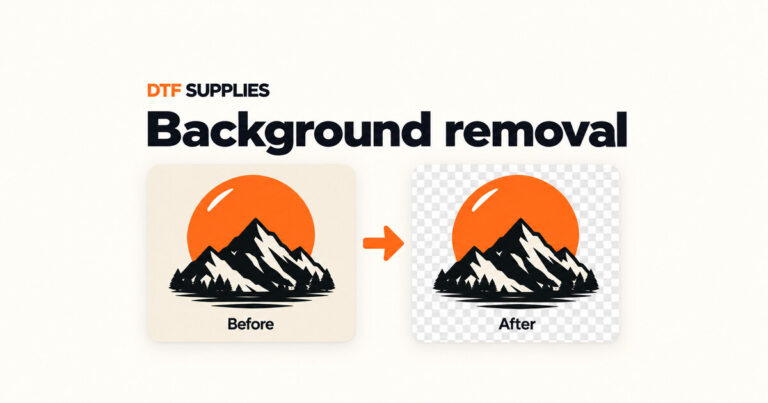
Sharp artwork can still contain an unwanted background. Use a transparent PNG when appropriate and inspect the actual file rather than relying on its extension. A PNG can contain an opaque white rectangle.
In Settings → Visual Aid, inspect the design on dark and light backdrops. The preview colour does not become part of your printed design. Look for unwanted boxes and halos while preserving white shapes that belong to the artwork.
Soft shadows and partially transparent edges deserve a closer check. If you are unsure whether the design will work as intended, ask us before ordering instead of assuming a resolution badge covers transparency too.
Understand the editor indicators
Keep Show Resolution Lines and Show Overlapping Lines visible during review. Use the legend displayed in the current builder rather than a colour chart from another print shop.
A blue overlap outline can replace an image’s resolution colour. Resolve the overlap and inspect the selected image’s resolution as well. Hiding an outline only hides the visual warning.
A favourable badge also has limits. Drip’s guide explains that vector objects and text can appear green without a raster-DPI measurement. Their spelling, proportions and fine detail still need checking.
Frequently asked questions
Why does the basket preview look softer
The basket preview can be compressed. Return to the editor to inspect the artwork, final dimensions and effective resolution. A soft thumbnail alone does not establish that the print file has lost quality.
Will a larger PNG fix a small image
Exporting a larger file from the original design may help when that original contains more detail. Simply enlarging an existing small raster image does not recover the missing detail.
What should I check last
Confirm the final dimensions, readable text, clean edges, intended transparency and all warning messages. For the full sheet workflow, use our gang sheet builder guide. If a file remains unclear, contact DTF Supplies before ordering.
For more on editor indicators, see Drip Apps’ guide to zooming and checking image quality.