After Auto Build arranges your DTF artwork, check the final dimensions of every design, the number of copies and every generated sheet. Oversized artwork can be reduced to fit, and a large batch can continue onto extra sheets. The finished layout needs to match your transfer list before you add it to the basket.
Our DTF gang sheet builder lets you combine different designs and sizes. A well-used sheet keeps the required print sizes and enough room to separate the transfers.
Start with a simple transfer list
Write down each design, its finished width or height and the quantity you need. Treat a chest logo and a back design as separate entries even when they use the same artwork. Check which dimensions your customer approved before arranging the sheet.
Use clear file names to distinguish versions. For example, “club-logo-chest” is easier to reconcile than several files called “final”. Decide deliberately whether the job needs spare transfers or additional small logos.
This list is your final check after packing. The appearance of a full sheet cannot tell you whether a particular logo is missing or has been added twice.
Set up Auto Build
- Open the builder and choose Auto Build. Use the sheet sizes displayed for the product.
- Add the individual designs. Use Upload Image(s), then work through each design card.
- Set the finished dimensions and quantity. Keep the aspect ratio locked for proportional artwork. Give the same logo a separate card when you need it in another size.
- Review the artwork quality. Resolve unsuitable source files before producing a large batch of copies.
- Check the margins before arranging. Confirm the gap between designs and the clear border around the sheet.
- Apply the layout. Review any preview options offered, then continue to the finished sheets and carry out the checks below.
The builder may offer more than one sheet arrangement, or proceed directly to a result. Review what it actually generates rather than assuming there will be one sheet.
Keep useful space between transfers
Image Margin controls the space between separate designs. Artboard Margin keeps a clear area around the outside of the sheet. They serve different purposes.
Choose spacing that lets you separate the transfers without cutting into neighbouring artwork. Do not remove all gaps just to make the sheet look fuller. Check the values and units shown in the builder; margin controls can depend on the product configuration.
Set the margins before packing. If you change them afterwards, run the arrangement again and review the new result. Moving a design can create a new overlap even when the original layout was clear.
Check dimensions after packing
Select each design in the completed layout and compare its width and height with your transfer list. Drip’s Auto Build documentation states that artwork larger than the sheet can be shrunk to fit when added.
If a design is now smaller than required, stop and correct the plan. Check whether it fits another available sheet option at the intended size. If it does not, contact DTF Supplies before ordering.
Do not stretch a logo or quietly accept a smaller print to squeeze more copies onto a sheet. A correct transfer size matters more than the appearance of a tightly packed preview.
Review every active sheet and both quantities
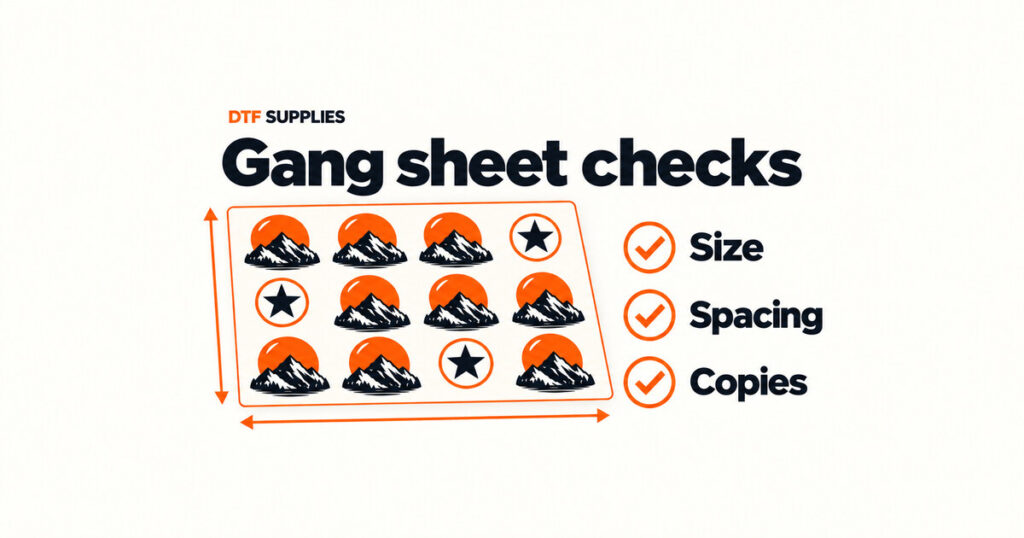
Check every entry in Active Gang Sheets. Count the designs across all sheets and reconcile them with your list. Look for an almost-empty extra sheet, missing copies or duplicate artwork before deciding the layout is finished.
Artwork copies within a sheet and the quantity of complete sheets are separate. If one completed sheet contains eight chest logos, ordering two copies of that whole sheet produces sixteen chest logos. Confirm both quantities so a repeated design is not multiplied accidentally.
Keep overlap and resolution lines visible. Inspect the sheet edges, small lettering and any artwork you moved after packing. Review the basket again after choosing Save & Add to Cart.
Frequently asked questions
Should I fill every empty area
Only with transfers you need. An empty gap may be necessary for cutting or may be too small for another design at the correct size. Extra artwork has little value if it changes the order or is never used.
What if Auto Build creates too many sheets
Check dimensions, duplicate entries, copy counts and margins against your list. Review the available sheet options. Reduce a quantity only when it was entered incorrectly, and change a print size only when that new size is acceptable.
Can I rearrange the result by hand
Yes. You can adjust the layout in the editor. After moving anything, repeat the size, overlap, edge and quantity checks before saving.
New to the tool? Start with our complete gang sheet builder guide. Drip Apps’ Auto Build documentation explains the underlying workflow and configuration-dependent options.